VPN-SHOP - Simple solutions in difficult times. VPN without hassle.
VPN-SHOP is a service where everything is simple — no confusing instructions, unclear pricing, or hidden terms.
Just straightforward solutions that work right after purchase.
- Instant activation — the subscription starts working right after payment.
- Easy setup — the instructions work even for those hearing the word VPN for the first time.
- Stable connection — we use modern protocols and reliable European infrastructure.
Pricing
VPN-SHOP offers several subscription options — from short-term to yearly. Choose what suits you best.
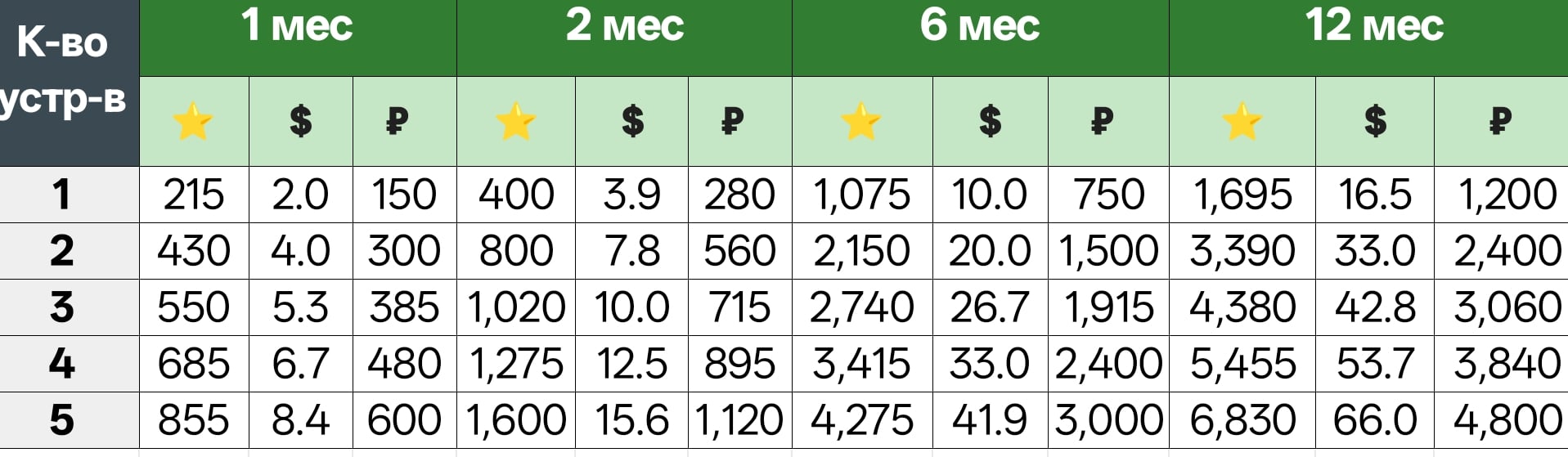
where ⭐ is Telegram Stars ✨, which you can buy inside the Telegram app.
Bypassing restrictions
Some mobile carriers restrict internet access, leaving open only resources from so-called “whitelists.” You can bypass these restrictions — just get a test from our support team and pay for the connection.
How to pay for a subscription in the bot
VPN-SHOP offers the following payment methods:
Platega
In the «SUBSCRIPTION» menu of @rmnp_bot, choose the number of devices, subscription length, and payment method — Platega. Follow the on-screen instructions.
Telegram Stars
- In the «SUBSCRIPTION» menu of @rmnp_bot, choose the number of devices and the subscription length.
- Choose the payment method — Telegram Stars
- Follow the payment link
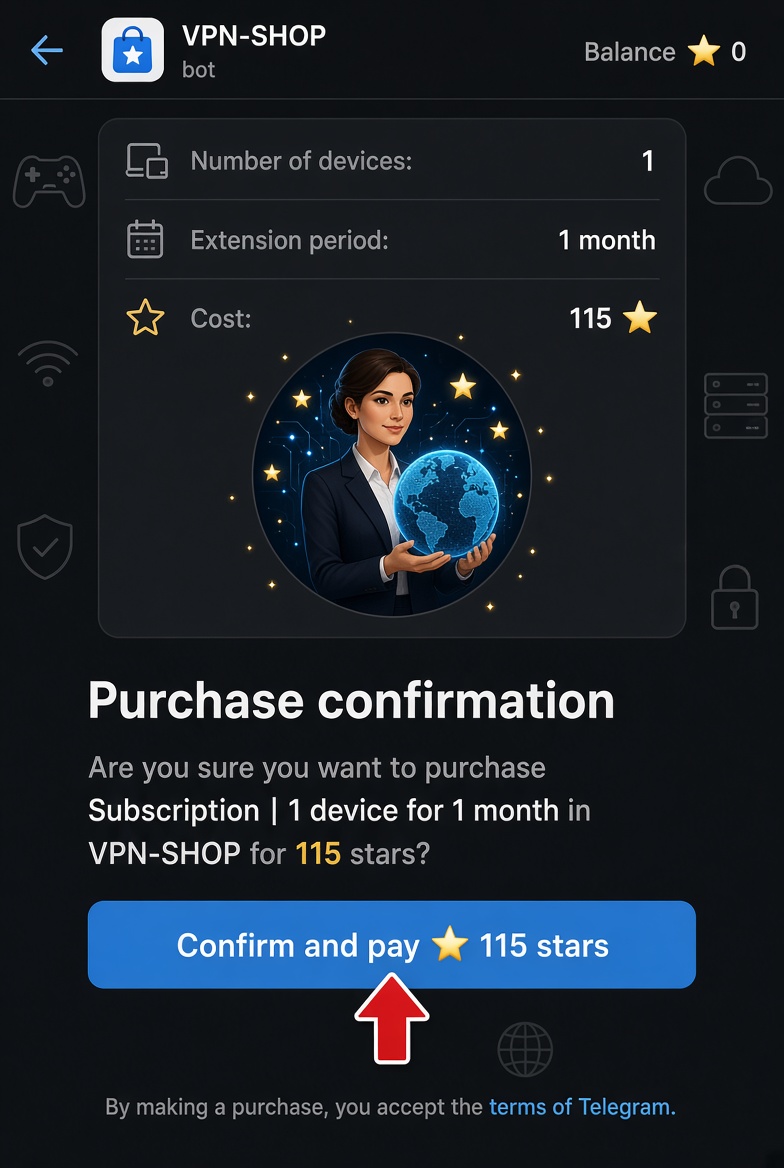
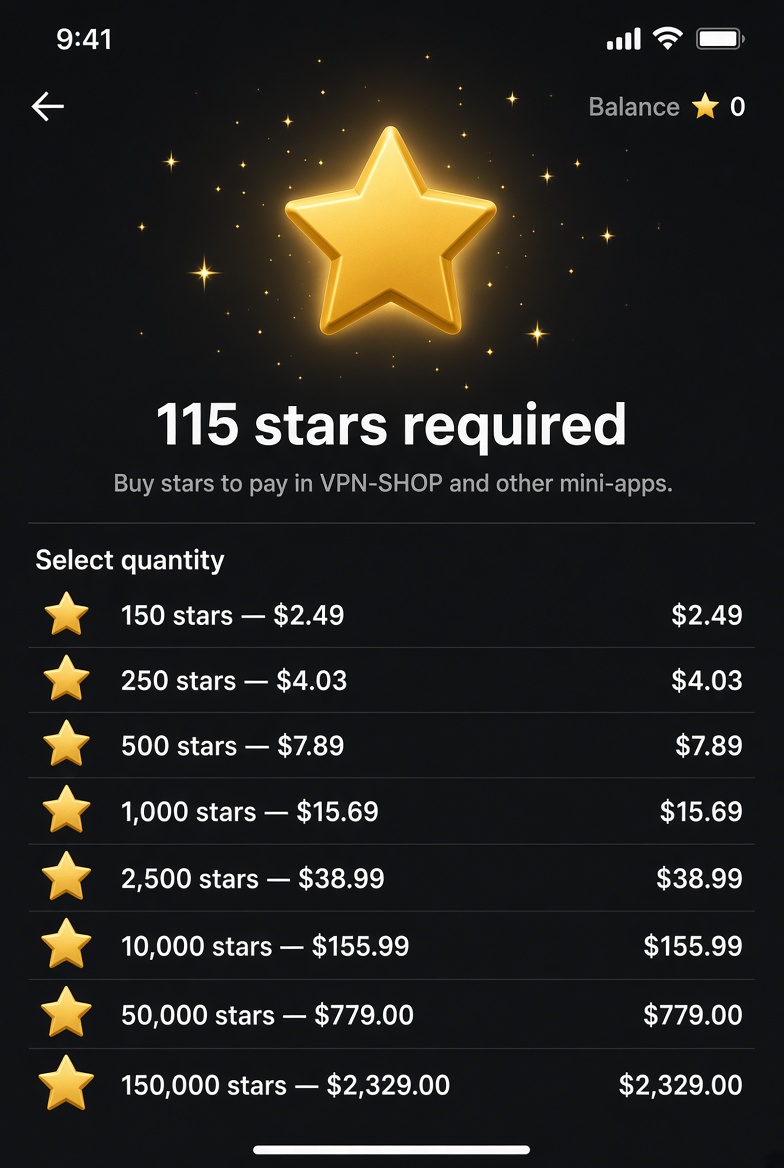
4. If you don't have enough Stars in your balance, you can buy them by paying with any bank card.
Heleket
- In the «SUBSCRIPTION» menu of @rmnp_bot, choose the number of devices and the subscription length.
- Choose the payment method — Heleket
- Choose the currency and network
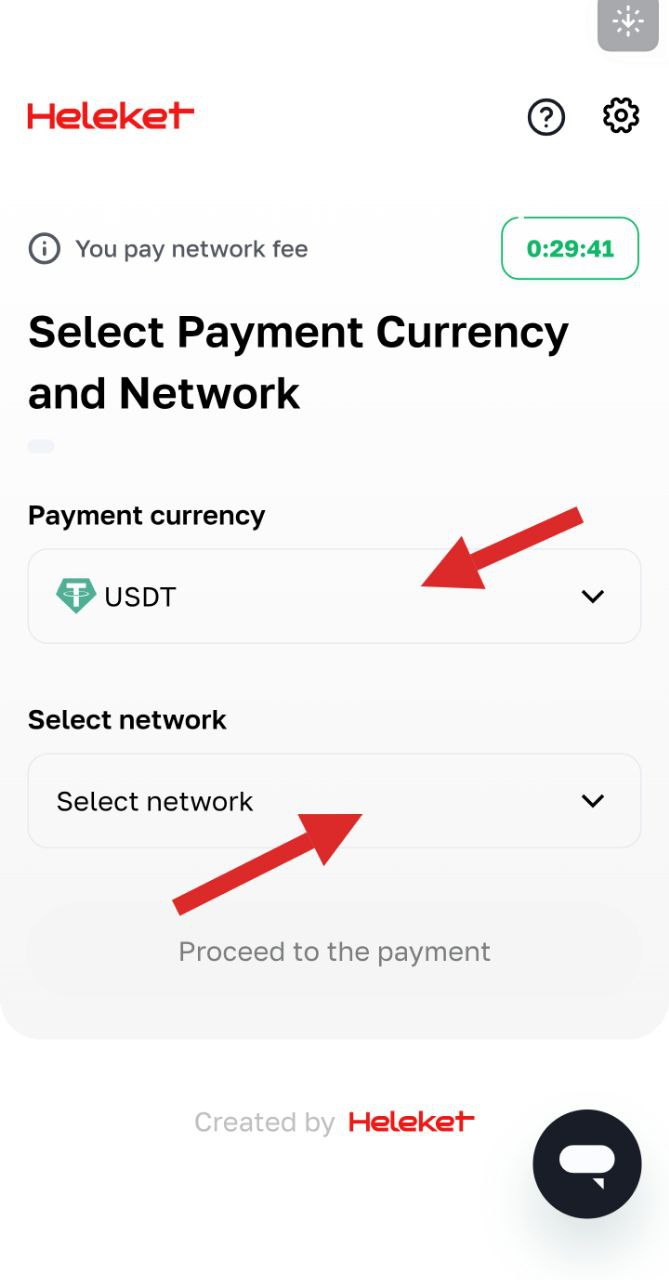
4. Scan the QR code or copy the payment link
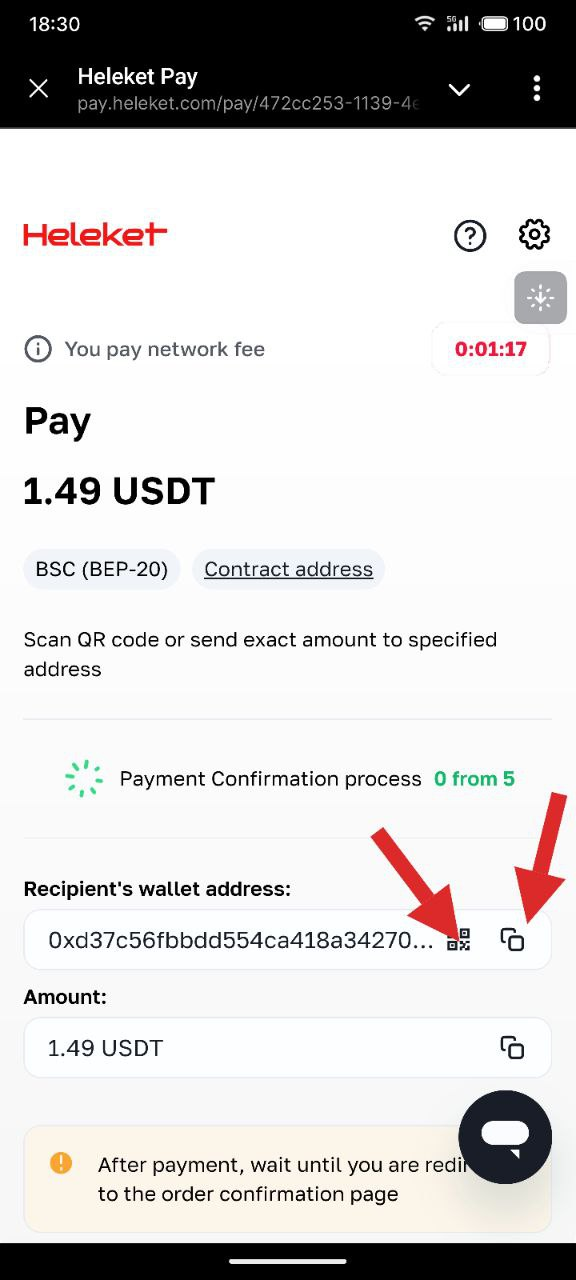
5. Complete the payment of the specified amount in the payment service
Connecting a VPN subscription in the Happ app for Windows 10+ (Android, iOS)
This article describes connecting a VPN subscription in the Happ app for Windows. ❗ The steps are similar for other apps on other operating systems.
After purchasing a subscription in @rmnp_bot, choose «Connect»
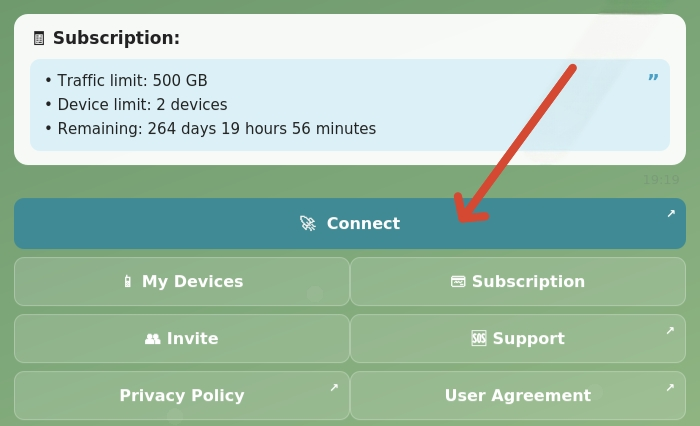
Confirm following the link. In the window that opens, select Windows and Happ
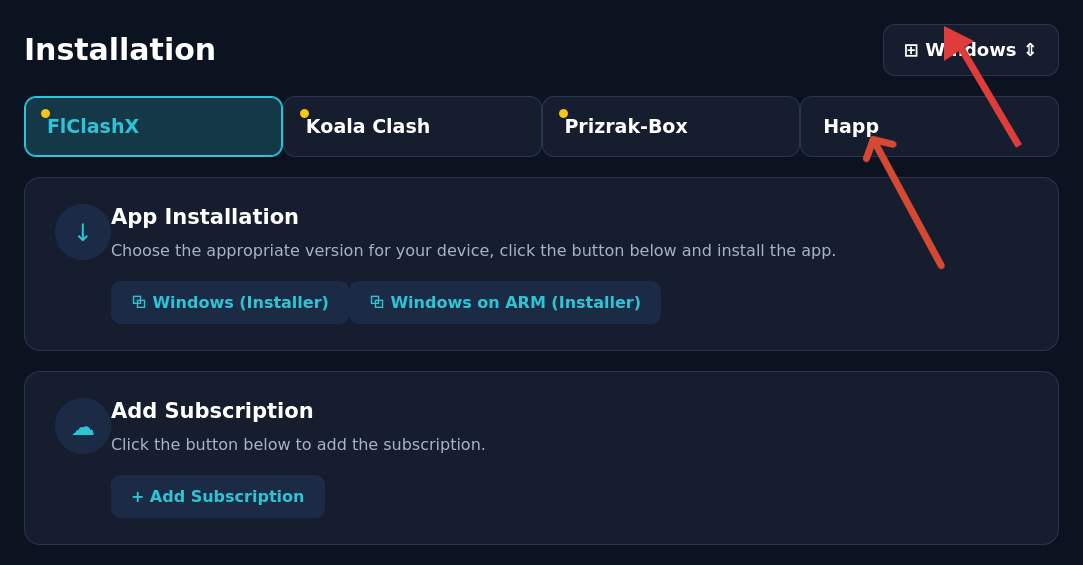
Download Happ using the Windows installer
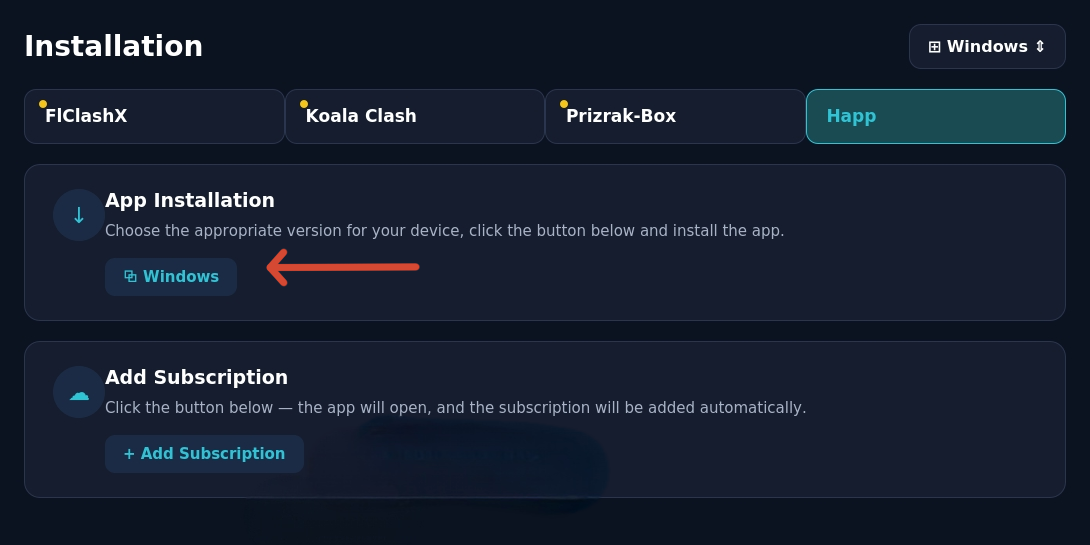
Choose «Add subscription»
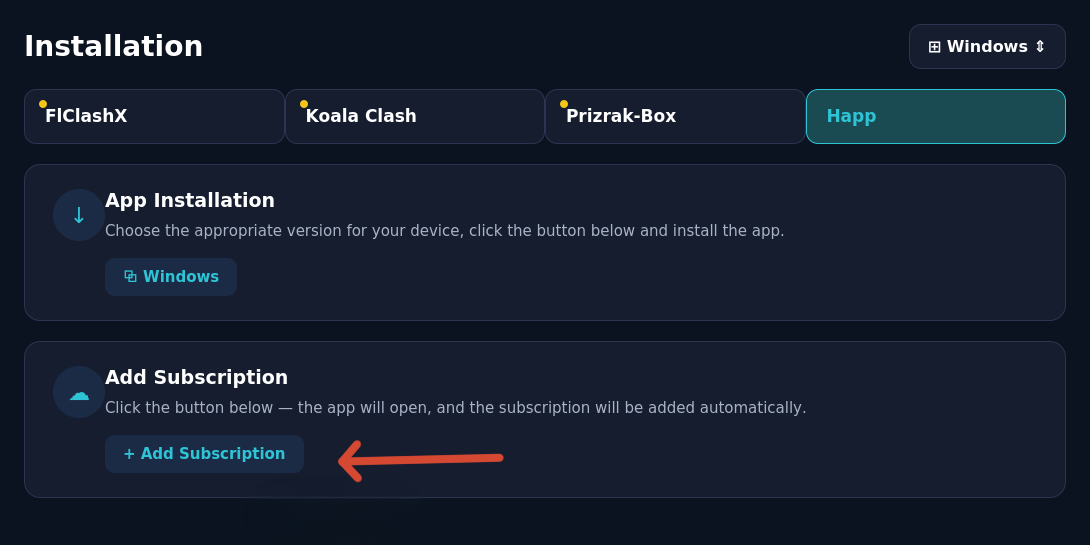
The subscription will appear in the Happ app.
❗Important: If you already have a client app installed from the recommended list, select the installed app from the list:
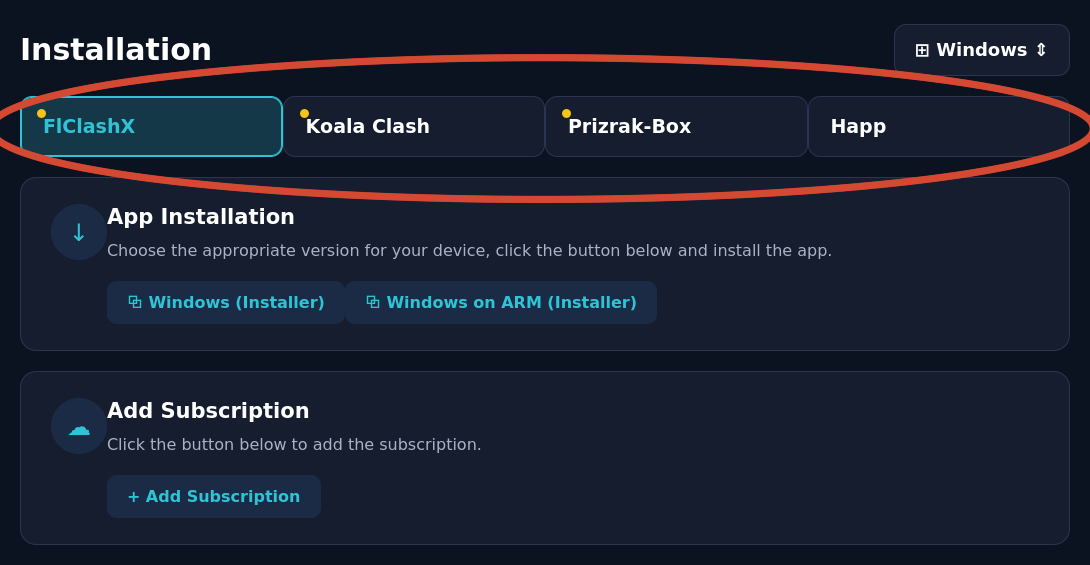
and add the subscription (fig. 8)
In the app, choose one of the servers and connect using the central button
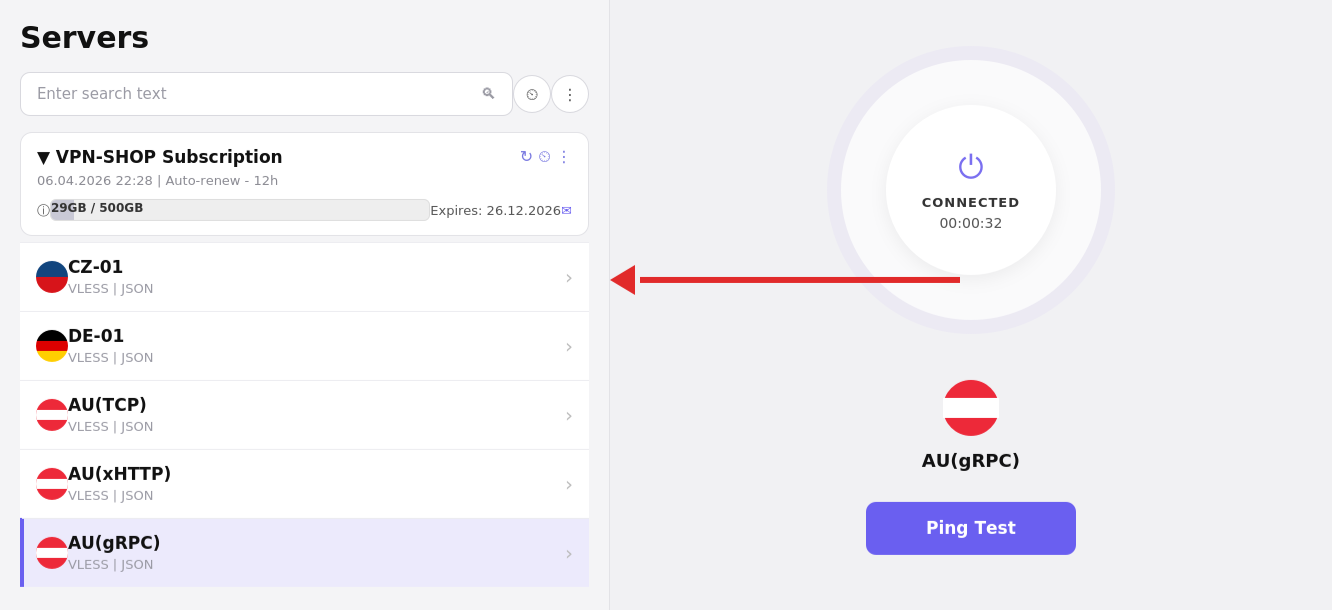
Connection established 👍
If needed:
Routing. Ready-made configurations for Happ, Incy, Mihomo (Clash Meta, Clash Mi, and others) apps.
https://github.com/vanitoo/remnawave-roscomvpn-happ-routing/blob/main/README.md
Connect:
Support: @vport443